Managing External Control Lists
Learn how to configure and manage external control lists (whitelists and blacklists) for token transfer restrictions.
Overview
External control lists are on-chain smart contracts that manage transfer permissions for your security tokens. They allow you to:
- Create reusable whitelists and blacklists across multiple tokens
- Implement geographic restrictions and regulatory compliance
- Centralize transfer control management
- Maintain compliance lists independently from token contracts
What are External Control Lists?
External control lists manage who can hold and transfer tokens:
- Purpose: Centralized transfer permission control for multiple tokens
- Benefits: Reusable across different securities, easier to maintain
- Interface: Implements
IExternalControlList.isAuthorized(address) - Use case: Geographic restrictions, regulatory blacklists, approved investor lists
Types of Control Lists
Whitelists
- Definition: Only approved addresses can hold/receive tokens
- Use case: Accredited investor-only tokens, jurisdiction-specific offerings
- Behavior: Address must be on the list to pass validation
Blacklists
- Definition: Restricted addresses cannot hold/receive tokens
- Use case: Regulatory sanctions lists, blocked jurisdictions
- Behavior: Address must NOT be on the list to pass validation
Accessing External Control Lists
- Navigate to the ATS web application
- Click on "Control Lists" in the sidebar menu
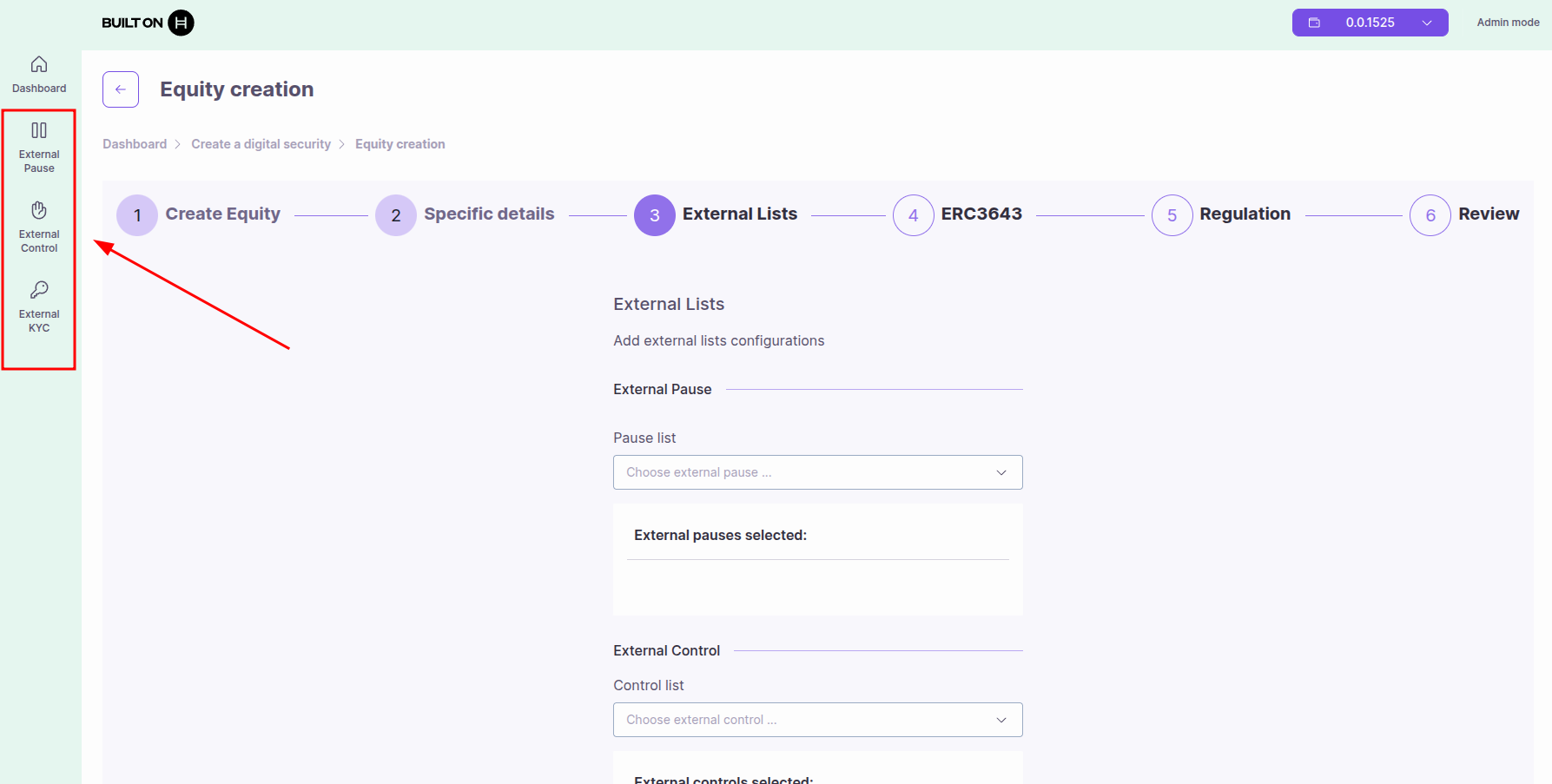
Creating or Importing External Control Lists
You have two options to add an external control list:
Option 1: Create New Control List
Creates a new external control list by deploying a smart contract automatically.
Steps:
- Click "Create" button
- Select list type:
- Whitelist: Approved addresses only
- Blacklist: Blocked addresses
- Provide list details:
- List Name: Descriptive name (e.g., "OFAC Sanctions List")
- Click "Deploy" or "Create"
- Approve the transaction in your wallet
- The contract is deployed and appears in your External Control Lists
What happens:
- A new external control list contract is deployed on-chain
- You become the manager of this control list
- The contract address is displayed (0x... or 0.0.xxxxx)
- You can now add addresses and link this list to your tokens
Option 2: Import Existing Control List
Use an existing external control list by importing its contract ID.
Steps:
- Click "Import" button
- Enter the Contract ID: Hedera contract ID (0.0.xxxxx) or EVM address (0x...)
- Click "Import"
- Approve the transaction in your wallet
- The external control list appears in your list
Use cases:
- Use a control list deployed by another team member
- Connect to a third-party compliance provider's list
- Share blacklists/whitelists across multiple organizations
Note: When importing, you may have view-only access unless you have admin permissions on the imported contract.
Linking External Control Lists to Tokens
After creating or importing an external control list, you need to link it to your security tokens.
Steps:
- Navigate to your security token from the dashboard
- Go to the "Control" tab
- Select the "External Control List" section
- Click "Add External Control List" button
- Select the external control list from the dropdown
- Click "Add" to confirm
- Approve the transaction in your wallet
Required Role: You must have CONTROL_LIST_MANAGER_ROLE on the token to link external control lists.
Managing Control List Members
Once you have created or imported a control list, you can manage addresses in it.
Viewing Addresses
To view all addresses in the control list:
- Navigate to the external control list from the sidebar
- Select the list you want to view
- Click the magnifying glass icon (🔍)
- View the list of all addresses in this control list
Adding Addresses
To add an address to the control list:
- Navigate to the external control list
- Click the user with plus icon (👤➕)
- Enter the account address (Hedera ID or EVM address)
- Click "Add"
- Approve the transaction
Note: For whitelists, this approves the address. For blacklists, this blocks the address.
Removing Addresses
To remove an address from the control list:
- Navigate to the external control list
- Click the user with minus icon (👤➖)
- Enter the account address to remove
- Click "Remove"
- Approve the transaction
Deleting the Control List
To delete an entire external control list:
- Navigate to the external control list
- Click the trash icon (🗑️)
- Confirm the deletion
- Approve the transaction
Important: When you delete an external control list, it will be automatically removed from all security tokens that are using it. This affects all linked tokens immediately.
How Control Lists Work
Validation Flow
When a transfer is attempted:
- Internal control list checked (if configured)
- External control lists checked (all must pass)
- Result: Transfer allowed only if all checks pass
Whitelist Behavior
Transfer allowed if:
- Internal whitelist: address is whitelisted OR list is empty
- External whitelists: address is whitelisted in ALL linked lists
Blacklist Behavior
Transfer blocked if:
- Internal blacklist: address is blacklisted
- External blacklists: address is blacklisted in ANY linked list
Priority Rules
- Blacklist always wins: If any list blacklists an address, transfer is blocked
- All whitelists must pass: Address must be whitelisted in all linked whitelists
- Empty whitelist = no restriction: If whitelist is empty, no whitelist check is applied
Managing Multiple Control Lists
Using Multiple External Control Lists
A token can use multiple external control lists simultaneously:
- Multiple whitelists: Address must be in ALL whitelists
- Multiple blacklists: Address must NOT be in ANY blacklist
- Mixed: Can use both whitelists and blacklists together
Example Scenarios
Scenario 1: Geographic Restrictions
- Whitelist 1: US investors
- Whitelist 2: EU investors
- Result: Only US AND EU approved investors can hold tokens
Scenario 2: Regulatory Compliance
- Blacklist 1: OFAC sanctions list
- Blacklist 2: Local regulatory blacklist
- Result: Any address on either list is blocked
Required Roles
To manage external control lists:
- CONTROL_LIST_MANAGER_ROLE: Add/remove external control lists from token
- DEFAULT_ADMIN_ROLE: Full administrative access
For the external control list contract itself:
- Contract deployer controls who can add/remove addresses
See the Roles and Permissions Guide for details.
Smart Contract Interface
External control list contracts must implement:
interface IExternalControlList {
  function isAuthorized(address account) external view returns (bool);
}
Returns:
true: Address is whitelisted (or not blacklisted)false: Address is not whitelisted (or blacklisted)
Best Practices
Security
- Regular audits: Review list members periodically
- Role separation: Different admins for different control lists
- Transaction verification: Always verify addresses before adding
- Backup lists: Maintain off-chain backups of list members
Compliance
- Documentation: Maintain records of why addresses are added/removed
- Update frequency: Establish procedures for regular list updates
- Regulatory alignment: Ensure lists match regulatory requirements
- Audit trail: All changes are on-chain and immutable
Performance
- Batch operations: Use bulk import for large lists
- Pagination: Query large lists in pages to avoid timeouts
- Shared lists: Reuse control lists across multiple tokens to reduce costs
Troubleshooting
List Not Recognized
If your token doesn't recognize an external control list:
- Verify the list contract address is correct
- Ensure the list is properly linked to the token
- Check that you have CONTROL_LIST_MANAGER_ROLE
- Verify the list contract implements
IExternalControlListinterface
Transfer Blocked Unexpectedly
If a valid transfer is being blocked:
- Check if address is on any blacklist
- Verify address is on all required whitelists
- Ensure external control lists are correctly configured
- Check both sender and receiver addresses
Transaction Failed
- Insufficient HBAR: Ensure wallet has enough for gas fees
- Permission denied: Verify you have the required role (CONTROL_LIST_MANAGER_ROLE)
- Invalid address: Check address format and checksum
- Already added: Address may already be on the list
Use Cases
1. Geographic Restrictions
Scenario: Token only for US investors
Solution:
- Create whitelist for US investors
- Link to token
- Only US-approved addresses can hold
Benefits: Automatic geographic compliance
2. Regulatory Sanctions
Scenario: Comply with OFAC sanctions
Solution:
- Create blacklist with OFAC addresses
- Link to all tokens
- Update list as OFAC updates
Benefits: Centralized compliance, automatic enforcement
3. Accredited Investor Only
Scenario: Security for accredited investors only
Solution:
- Create whitelist for verified accredited investors
- Link to token
- Non-accredited investors cannot receive tokens
Benefits: Regulatory compliance, automatic enforcement
4. Multi-Jurisdiction Offering
Scenario: Token for US and EU investors only
Solution:
- Create whitelist 1: US approved investors
- Create whitelist 2: EU approved investors
- Link both to token
- Investor must be on both lists
Benefits: Multi-jurisdiction compliance
Interaction with Other Compliance Features
Control Lists + KYC
Control lists work alongside KYC:
- KYC check: Is investor verified?
- Control list check: Is investor authorized?
- Both must pass: Transfer proceeds only if both pass
Control Lists + SSI
Control lists complement SSI:
- SSI: Verifies identity
- Control lists: Controls transfer permissions
- Independent: Each operates separately
Control Lists + ERC-3643
For ERC-3643 tokens:
- External control lists: ATS-specific feature
- ERC-3643 compliance: T-REX compliance module
- Can combine: Use both for comprehensive compliance
Next Steps
- Managing External KYC Lists - Investor verification
- Roles and Permissions - Understand access control
- Managing Compliance - Overall compliance strategy